


How to Read Outage Map
How to read the outage map
Our outage map shows you up-to-date information about power outages affecting Nova Scotia Power customers.
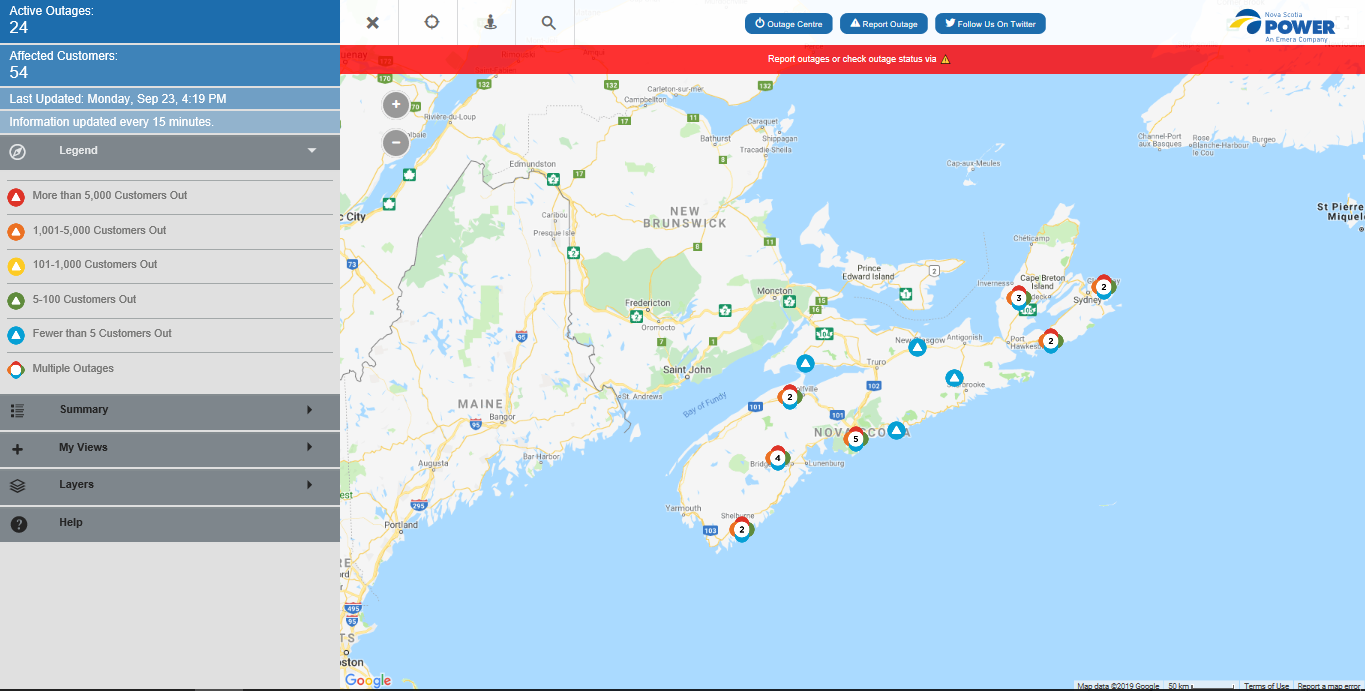
Overview of the map
- Every 10 minutes, the outage map updates to provide you with the most detailed, up-to-date outage information available.
- You can zoom, search, bookmark a view or allow us to find your location so you can see your estimated restoration time, outage cause, and more.
- Multiple outages in a certain area will be clustered together and expand into different coloured outage icons when you zoom in - the colours represent different sized outages.
- Shaded areas, although not drawn with pin-point accuracy, are drawn to give you a better view of where the outages are occurring.
- Report an outage online via the triangle icon on the map.
 Access Menu: Use this menu to find the total number of outages, how many customers are impacted, and when the map was last updated, the legend, a summary table, options for saving your view and more.
 Show My Location: If you give permission to share your location on the device or browser you are using, this button will show your current location on the map.
 Full Map View: This button restores the default view of the map.
 Search Address: This button allows you to search any address in the province.
NAVIGATION
How do I use the map?
Panning: To pan the map, use the arrow keys on your keyboard, or click a point on the map and then drag the map in any direction.
Zooming: To zoom in or out, click the corresponding button on the view control in the upper left corner of the map, or rotate the wheel on your mouse.
Details: To view detailed information about an item on the map, simply click your mouse over the item and wait for an information panel to appear.
How can I locate my outage?
There are a few ways. You can:
- Zoom in on the location
- Search by address
- Use the 'Show My Location' button if you've enabled your device or browser to track your current location
Use the 'My View' tab within the Access Menu along the left side to save locations you'll often search.
Can I view a summary of all outages?
The summary table shows the number of outages in a particular service area. The number of outages shown on this page includes all outages affecting more than five customers. Click 'View' to see the outages on the map.
ICONS AND SHAPES
What do the colourful shaded areas represent?
The colourful shaded areas represent areas experiencing outages. They are drawn from the locations of electrical equipment that are predicted to be out. The equipment locations on the perimeter of the outage area are connected by lines to create the shape. These are meant to give you a general idea of where the outages are occurring but aren't provided with pin-point accuracy. Locations with no power may fall outside the shaded area while others may fall within it.
Why are there outage icons or shaded areas within or overlapping one another?
This happens most often when one location is experiencing two outage incidents (ex. a transformer issue affecting a few streets, in addition to a transmission outage affecting an entire community). This is represented on the map as an outage icon and/or shaded area within another. In instances where the shaded areas overlap each other, it is likely because these areas aren’t drawn with pinpoint accuracy. You can call the outage line 1-877-428-6004 or use our online outage reporting tool anytime to get the individual outage status of your location.
Why isn’t the multiple outage icon separating when I zoom in?
Some outages are so close to each other that the minimum zoom level does not allow them to form their own outage icons. You can toggle between each outage in the information panel to see the ETR, cause, etc. You can call the outage line 1-877-428-6004 or use our online outage reporting tool anytime to get the individual outage status of your location.
Sometimes I can't see if there's an outage at my house when I use the search or show my location function. Why?
In some situations, the house icon or the location finder icon will overlay the outage icon. To get to the outage information, simply click on the house icon and choose to clear the marker, then you’ll be able to click on the outage icon. For the individual outage status of your location, you can call our outage line at 1-877-428-6004 or use our online outage reporting tool.
How precise is the location of the outage icon?
The location of the outage icon depends on the size of the outage. The map places the outage symbol near the location of electrical equipment where the outage occurred. If a shaded area is drawn, the outage icon will appear in the centre.
My power is out but I don’t see an outage icon on top of my location. Why?
You won’t necessarily see the outage icon on top of your location. You may be part of an outage where areas near you are also affected. Pan over to see if there is an outage near your location or check if your location is included in a colourful shaded area.
Other reasons are:
- Your outage may not yet be reported. Call us at 1-877-428-6004 or use our online outage reporting tool to report it.
- Your outage may have been reported but we haven’t sent our most recent outage information to the map yet. The map updates every 10 minutes. For the individual outage status of your location, you can always call our outage line at 1-877-428-6004 or use our online outage reporting tool.
FUNCTIONALITY
How often is the map updated?
The map is updated every 10 minutes. You can see the last time the map has been updated in the Access Menu.
Is the map mobile-friendly?
Yes. The map can be viewed on desktops, mobile phones and tablets. There are slight differences between the views on each device, but the core functionality remains the same.
Can I save my view to capture a specific location to easily access later?
Yes. Go to ‘My Views’ in the Access Menu, click on ‘Save this View’, name your view (ex: Home, Office, Cottage) and press enter to save. When you return, your view will be saved here.
How do I close and open the Access Menu?
You can close the Access Menu to get a fuller view of the map by closing the ‘X’ to the right of the menu. You can open it by clicking the compass icon in the same spot.
Why can’t I zoom in past 200 metres?
We set the closest zoom level to 200 metres because it’s close enough to see the location in which you’re searching, while also protecting customers’ privacy.
Why am I getting the error message ‘Address is outside the valid area’?
Some locations require you to include NS at the end of your search, while others don’t. It should work if you include NS at the end of the town or address in which you are searching.
Does the map show all outages across the province?
There are six municipally owned power utilities in Nova Scotia. Outages in these areas will show on the map as one outage affecting fewer than five.
Why can’t I see the full map?
After you visit the map once, your browser will return you to your last view. Zoom out to see the entire province.
RESTORATION AND CAUSES
How do you predict when the power will be restored?
Our estimates are based on our experience with similar types of outages in the area. Read more .
Why has my Estimated Time of Restoration (ETR) changed?
ETRs may be updated once crews arrive on site and assess the damage.
How can I find out more about restoration efforts?
During storms and other significant outages, we post restoration updates on Twitter and Facebook. Follow us to stay informed.